
See how it works
You forward. The AI does all the work. Four steps, start to finish — no folders to build, no tags to invent, no dates to retype.
Tell us about your kids (once)
Add each child and the school they attend. Paste the school website and the AI scans the staff directory, class lists, clubs and athletics pages for you. You approve what is actually yours. Ten minutes, one time.
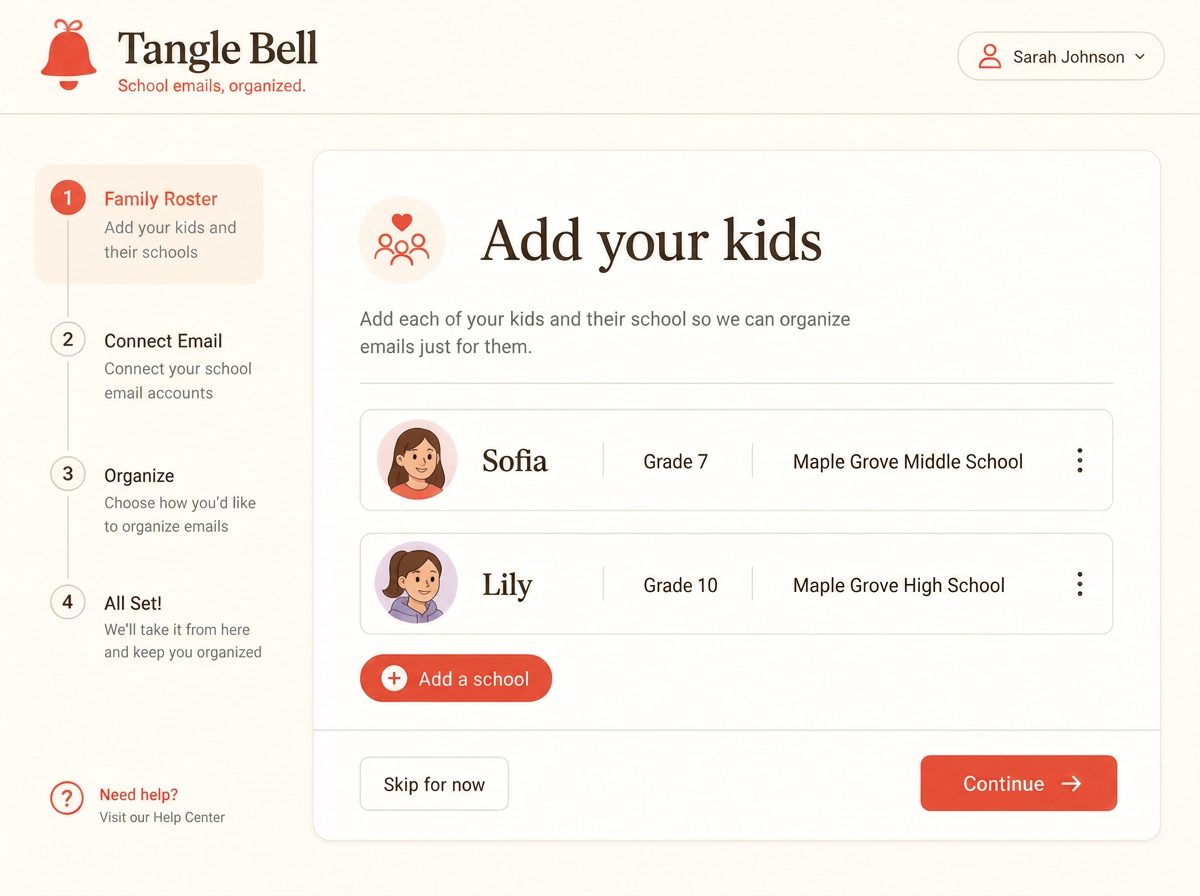
Forward the email (or auto-forward it)
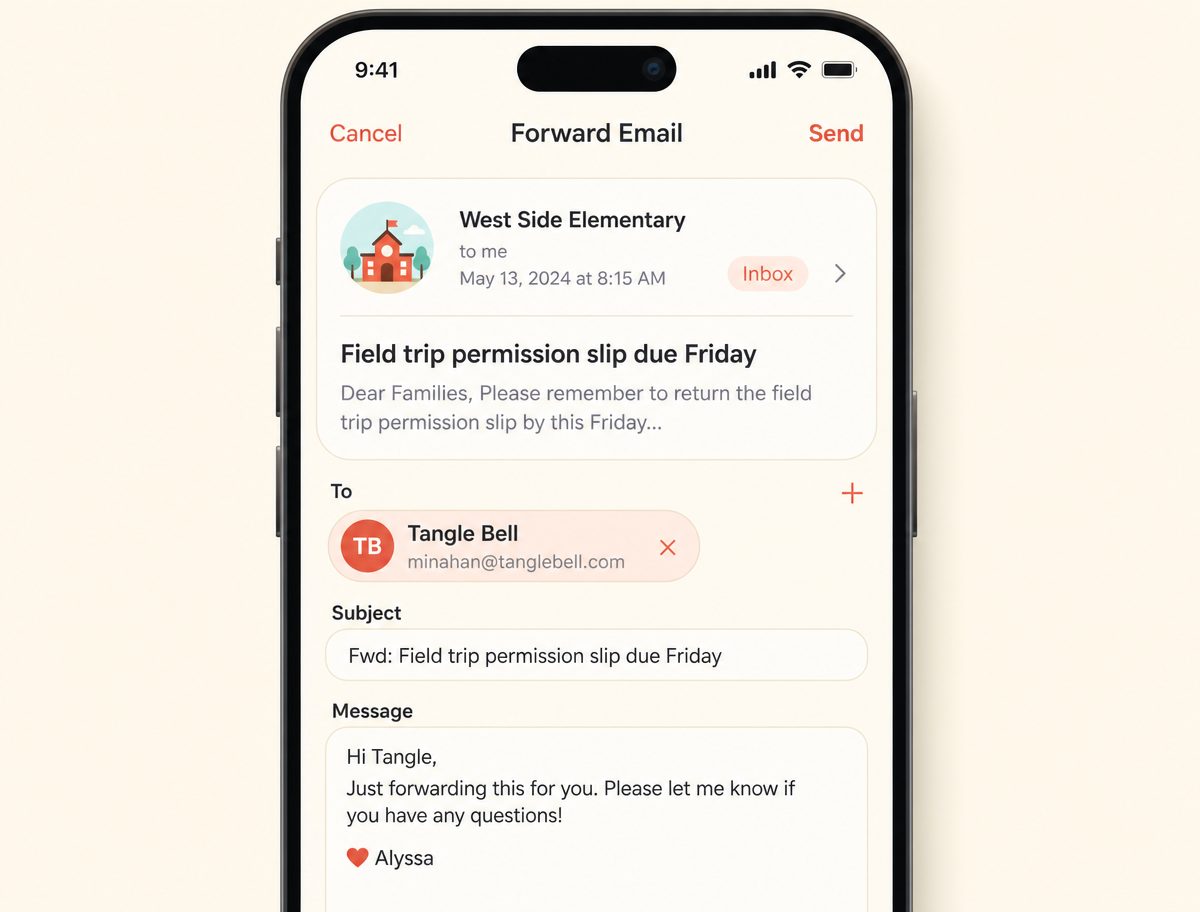
Your family gets a private address like minahan@tanglebell.com. Save the contact card to your phone and forward anything from school — or set a rule so it happens without you.
The AI reads it twice
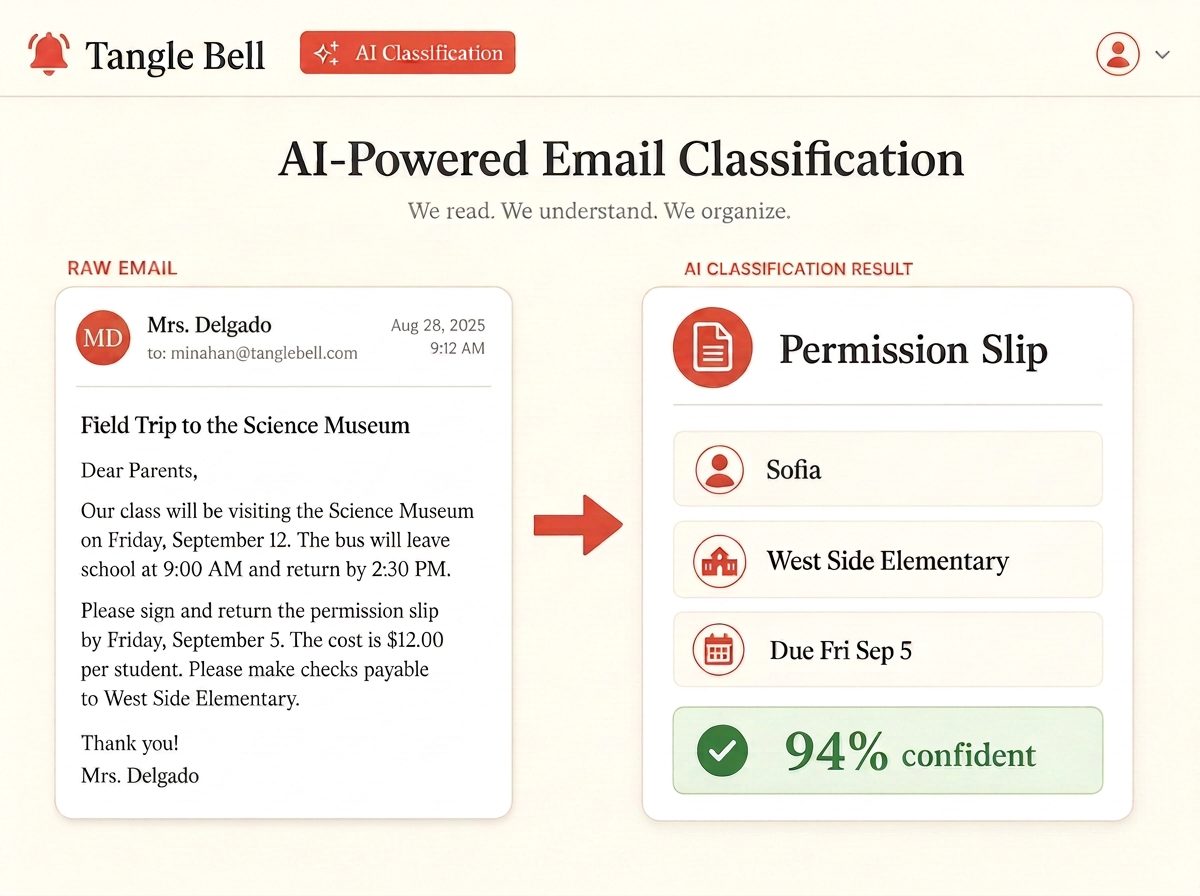
First pass: what is this about, what is the ask, what is the date. Second pass: which of your kids, which teacher, which class or team. Because it matches against your real roster, an email signed only "Mrs. Delgado" still lands on the right child.
You skim, you don't sort
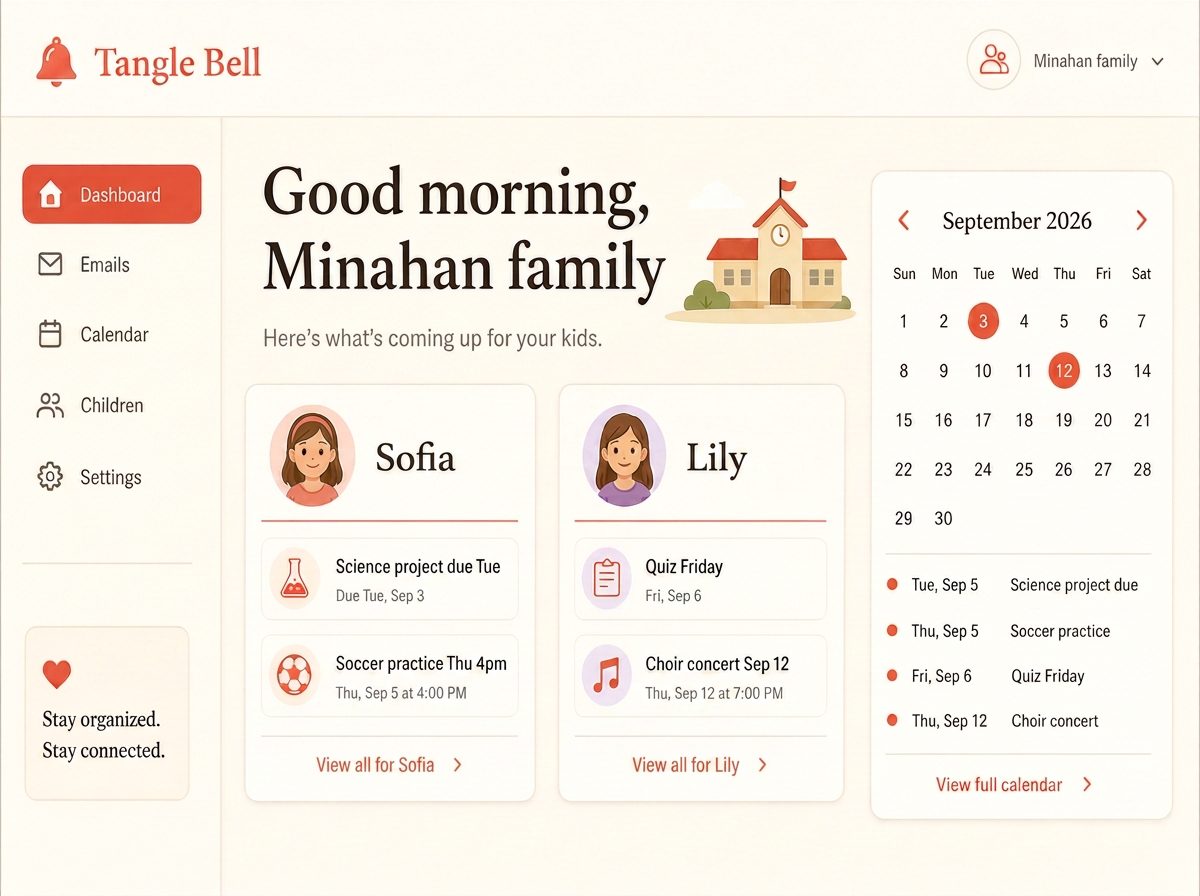
The item appears on that kid's page, on the family calendar and on your dashboard as an open to-do — with a plain-English summary and the original email one click away. A daily or weekly digest tells you what's due, and anything the AI was unsure about waits in a short triage list instead of landing half-right on your calendar.
Before and after, one email
What lands in your inbox
From: "Delgado, Marisol" <mdelgado@maplegrove.k12.oh.us>
To: Sofia's Parents
Subject: Invention project — bring materials Friday

Hi families,
Our invention projects are due this Friday, Aug 29.
Students should bring their materials in Thursday so
we can work on them in class.

Thanks,
Mrs. Delgado
What you see instead
- Kid: Sofia · School: Maple Grove Middle
- Teacher: Mrs. Delgado · Class: Gifted Resource
- Type: Project due
- Due: Friday, Aug 29 (materials in Thursday)
- Confidence: 88% — added to Sofia’s page and the family calendar
Try it yourself, right here
Pick one of the sample emails — or paste your own — and watch the same sorting happen live.
Try it with a sample email
Paste a forwarded school email below and see how Tangle Bell extracts the teacher, class, date, and next actions. No signup required.
Choose a sample or paste your own email, then click the button to see the organizer output.
Your first ten minutes
Minutes 1–2
Create your household and add each child with their grade and school.
Minutes 3–5
Paste each school website. Tangle Bell gathers the published staff, classes, clubs and athletics into a list.
Minutes 6–8
Tick the teachers, classes and teams that actually touch your kids. Nothing is added until you do.
Minutes 9–10
Save your family forwarding address as a phone contact — or set an auto-forward rule — and you're done.
A normal Tuesday, after setup
7:10am
Your digest lands: three things due this week across two kids, one payment outstanding.
11:30am
A coach emails about a bus time. You forward it and forget it.
3:45pm
It is already on the calendar under the right kid and team, with the original email attached.
8:00pm
You skim the open to-dos, tick off the permission slip, and close the laptop.
Quick questions parents ask
- What if the AI isn't sure?
- It never guesses onto your calendar. Unclear emails wait in a short review list with the reasoning shown, and one tap sets them right.
- Can both parents forward?
- Yes. If you both forward the same message, Tangle Bell recognises it and keeps one clean item instead of two.
- Can kids sign in?
- Older kids can have their own login and see only their own schools, teachers, classes and to-dos.
See each part up close
Forward & sort
Forward any school email to your private Tangle Bell address and AI files it under the right kid, teacher, class and due date — no folders, no rules, no typing.
Family roster
Add your kids, their schools, teachers and classes once. Tangle Bell uses that roster as ground truth so school emails are matched to real people instead of guessed at.
Kid pages
Each child gets their own page: school, teachers, classes, clubs and sports, plus every deadline and action item grouped by subject. Older kids can sign in and see it themselves.
Family calendar
Day, week and month views for the whole family or one kid at a time — built automatically from forwarded school emails, plus anything you add yourself.
School directory
Paste a school's website and Tangle Bell reads its public staff, class, club, athletics and calendar pages, then hands you a tick-box list to add to your roster. A one-time assisted import you approve — not a live lookup.
Digests & alerts
Get a daily or weekly digest of what is due, what needs action and what changed — plus an alert when a teacher who normally writes weekly goes quiet.